Build a schedule your way

Use Auto planning to compare compatible schedules, or use Manual planning to choose exact lectures, discussions, and labs.

Search and filter courses, set your preferences and commitments, review details and walking routes, then continue to TSS.

Open Class Planner

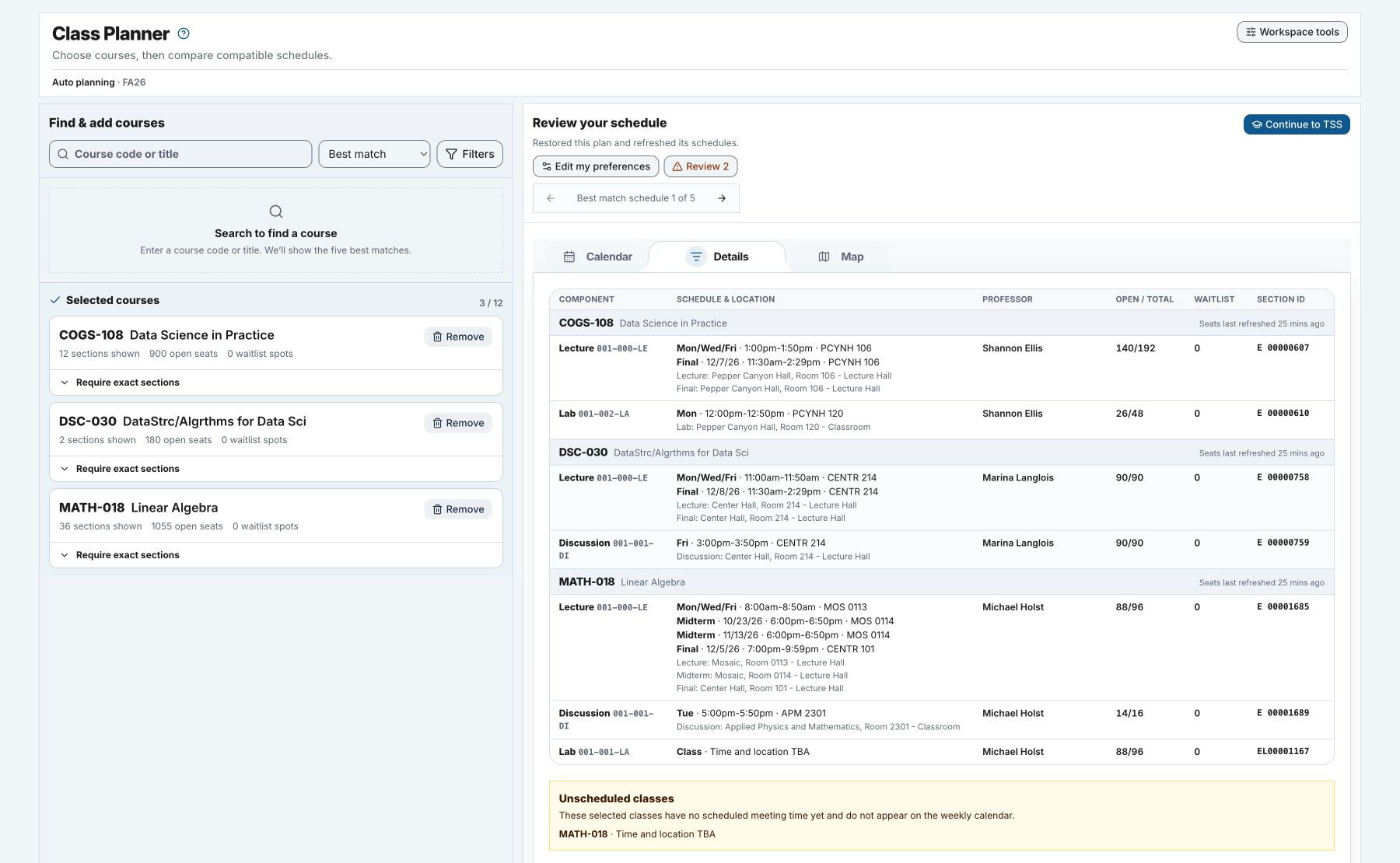
Auto planning workspace with course search, filters, three selected courses, schedule controls, and the Details view

1 Choose a mode

Decide how much control you want

Choose a term, then choose one of two planning modes.

Auto planning

Add courses and preferences. Class Planner creates compatible schedules for you to compare.

Manual planning

Choose the exact lecture, discussion, and lab sections you want and see them together on the calendar.

You can change the term or planning mode later under Workspace tools.

2 Find courses

Search, sort, and filter courses

Search by course code or title. You can use part of a course name or number, and you do not need to type leading zeroes.

  • Sort by best match, course code, title, open seats, or number of sections.
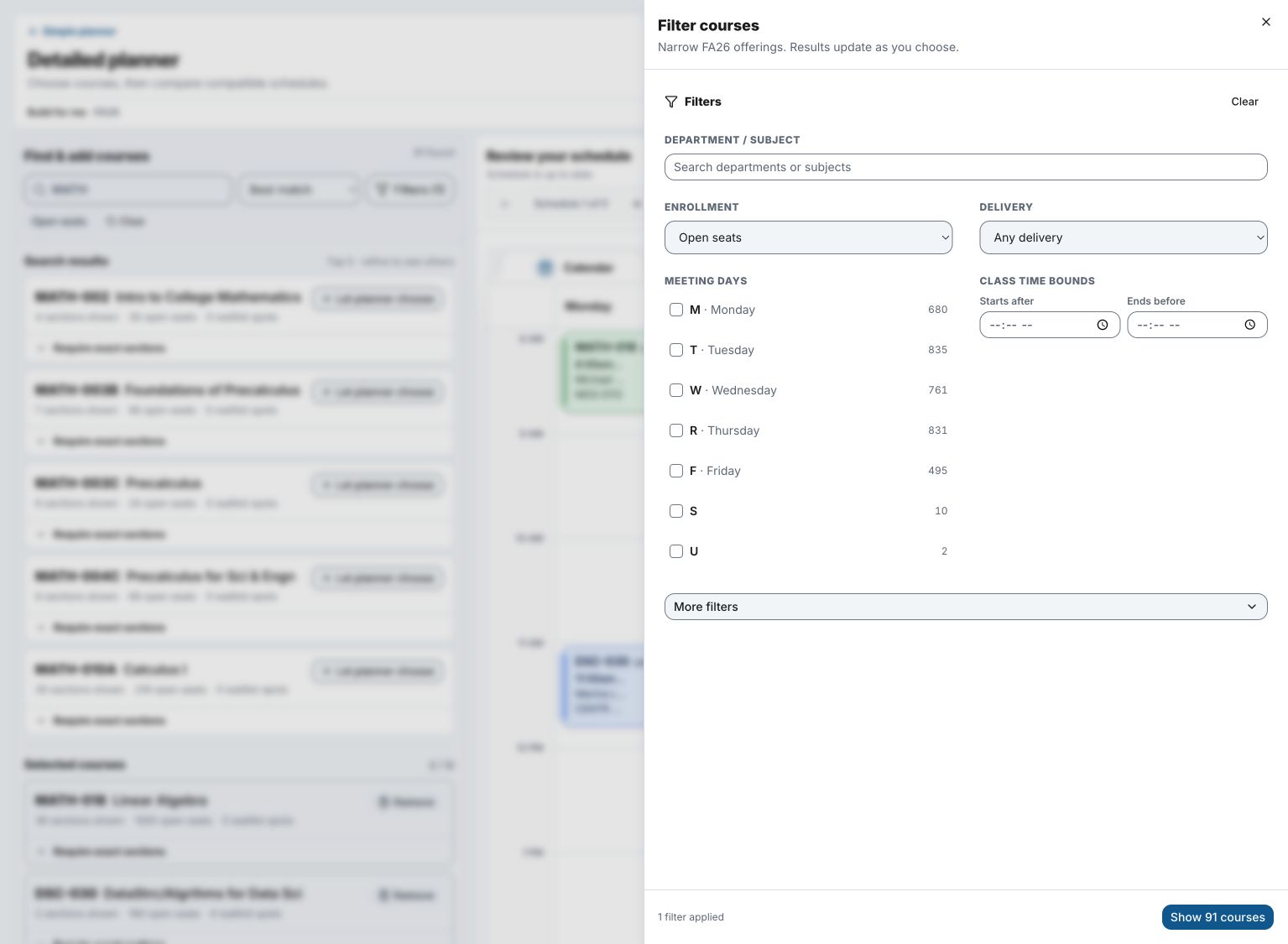
  • Filter by department, seat availability, delivery method, meeting days, or time of day.
  • Add between 1 and 12 courses.
  • Choose Let planner choose or open Require exact sections when you add a course.

Adding a course or section does not reserve a seat or a place on the waitlist.

Detailed planner course search with filters for seats, department, delivery method, days, and times
Use filters to narrow the course list before you add courses.

3 Auto planning

Compare schedules built around your choices

Class Planner combines the courses you chose with your preferences and shows up to five compatible schedules.

Compare options

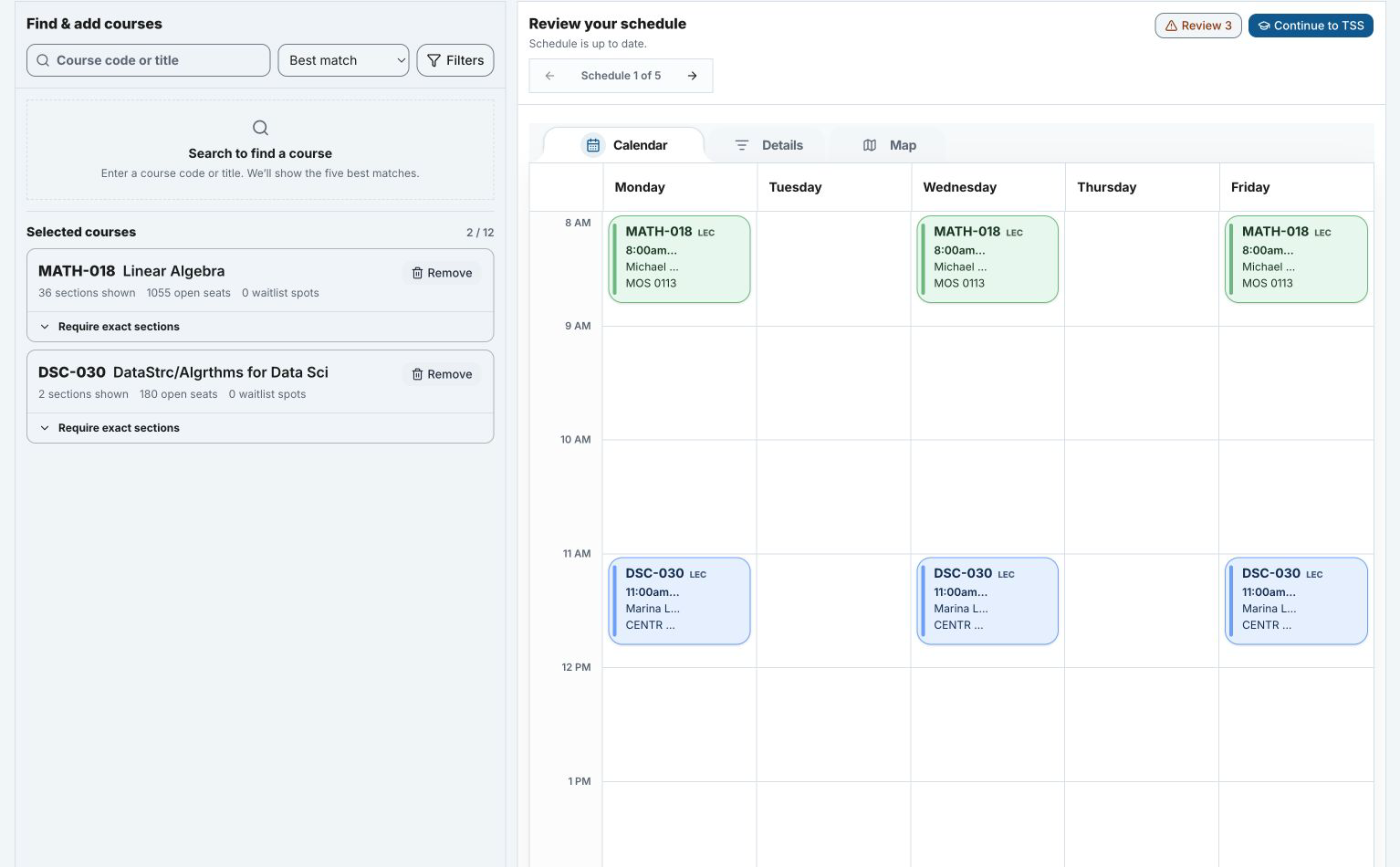
Use the schedule controls to move through the proposed schedules.

Choose a view

Use Calendar for the week, Details for course and exam information, and Map for walking routes.

Review your schedule

Open Review to check any items reported for the schedule on screen before you continue.

Auto planning workspace with selected courses, schedule navigation, and a weekly calendar
Compare the generated schedules, then check the Calendar, Details, and Map views.

Preferences and commitments

Tell the planner what works for you

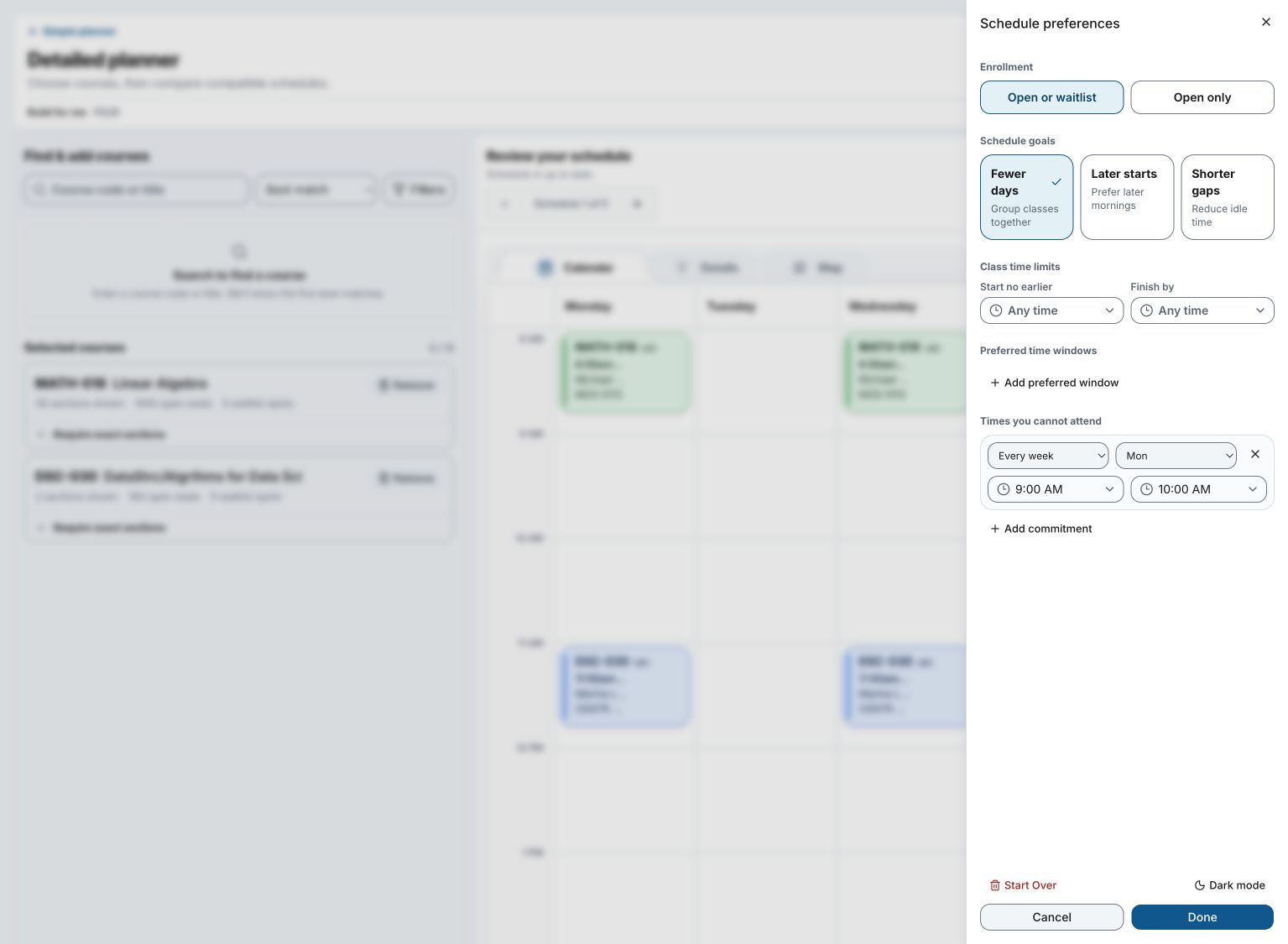
Open Workspace tools, then choose Edit preferences. You can set:

  • Open-only or waitlist options.
  • Goals such as fewer days, later starts, or shorter gaps.
  • Earliest and latest class times and preferred time windows.
  • Personal commitments that repeat weekly or happen on one date.

Class Planner will not place classes during the commitments you add.

Schedule preferences with Fewer days selected and a weekly Monday commitment
Set schedule goals, time limits, preferred times, and commitments.

Map view

Check the walk between classes

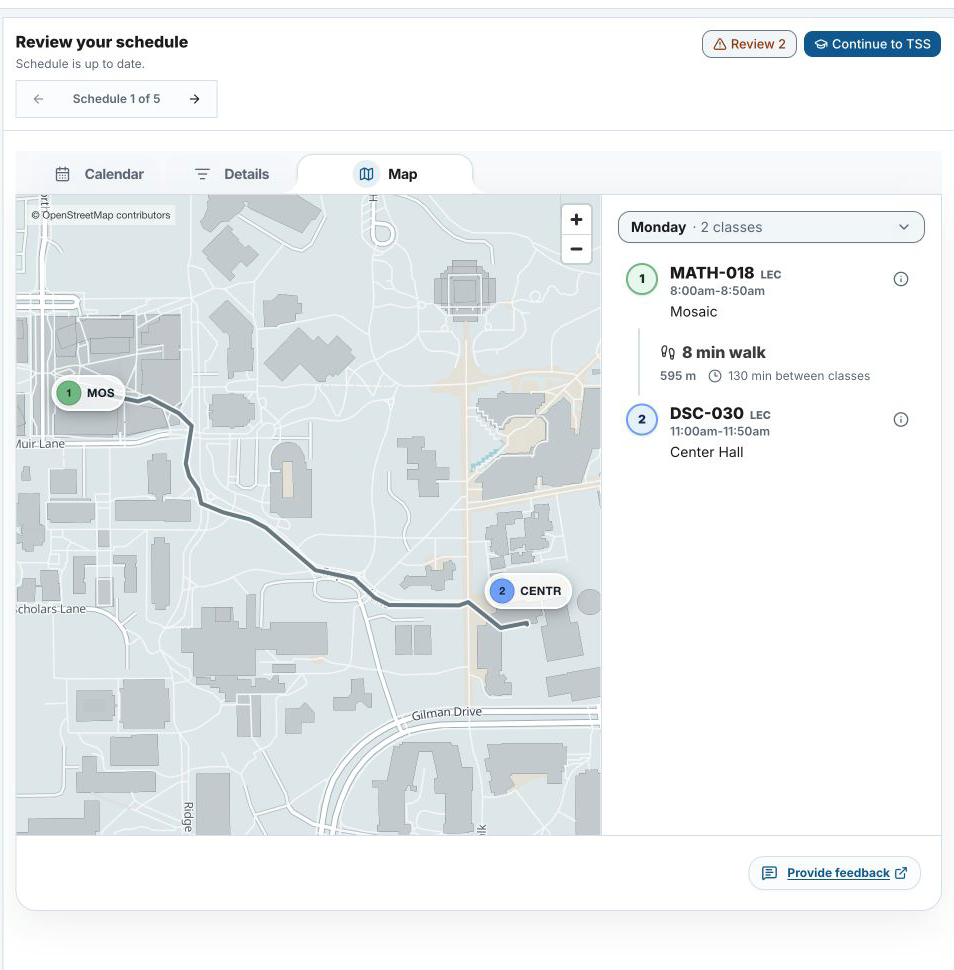
Open Map to see each day’s classes in order. Class Planner shows the route, estimated walking time, distance, and time between classes.

  • Choose a day to see its route and class stops.
  • Spot tight connections: Class Planner highlights when the estimated walk is longer than the time between classes.
  • Leave extra time when you need it.
Map view showing a walking route from Mosaic to Center Hall with an eight-minute estimate
Walking times are estimates. Check the route and time between classes.

4 Manual planning

Choose exact sections yourself

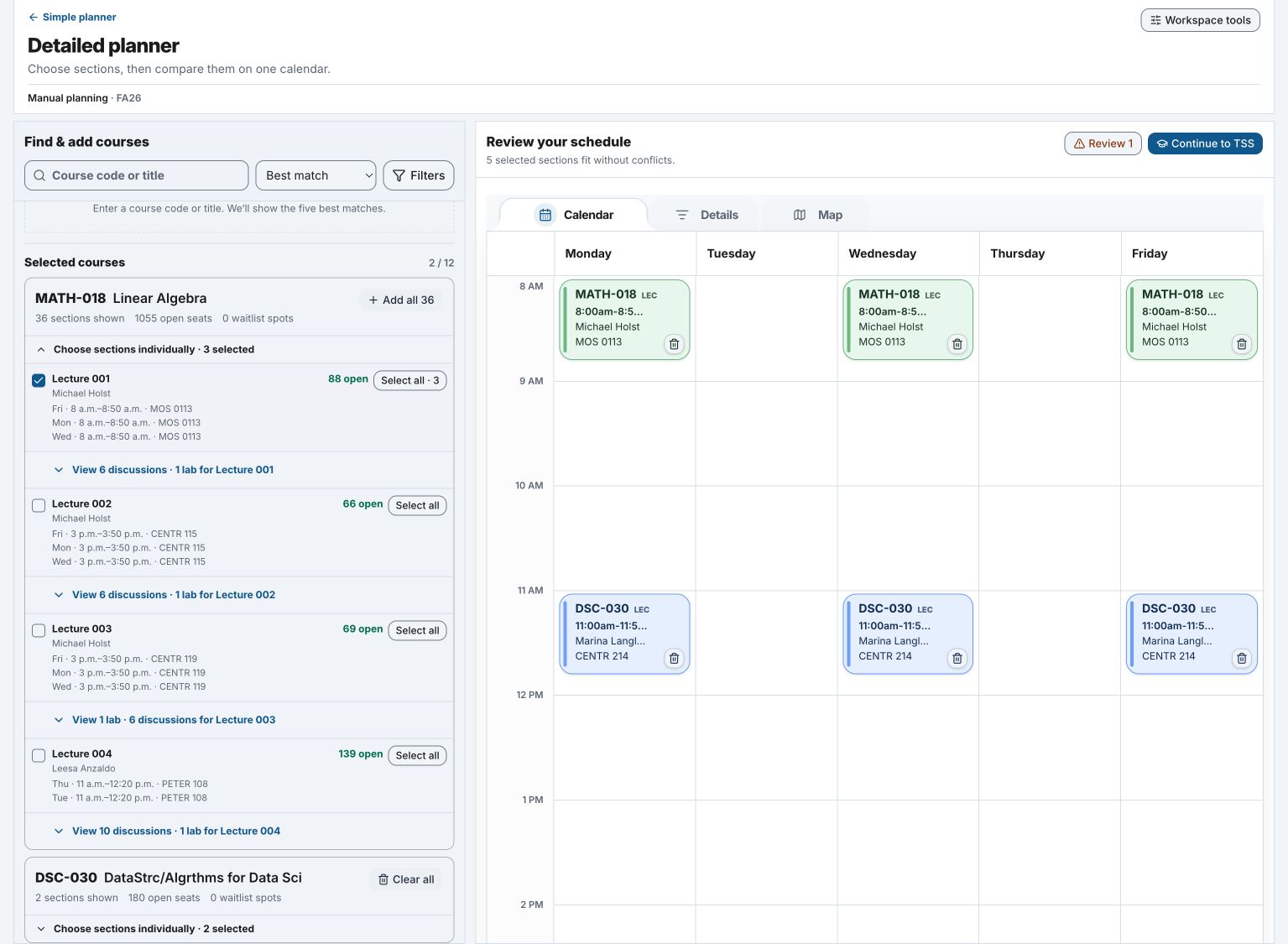
Use manual planning when you want to control every lecture, discussion, and lab. Your choices appear together on the calendar as you work.

Build a valid section combination

  • Open a course to see its available lecture groups.
  • Choose Select all to add a complete group, or choose each required section separately.
  • Use the calendar to spot overlaps and compare your exact choices.
  • Remove a section or choose another group when you need to make a change.

Continue to TSS stays unavailable until every selected course has the required section combination.

Seat counts can change. Choosing a section in Class Planner does not save a seat.

Manual planning workspace with exact lecture and discussion choices beside a weekly calendar
Choose exact sections and check the calendar before continuing to TSS.

Check the details before you decide

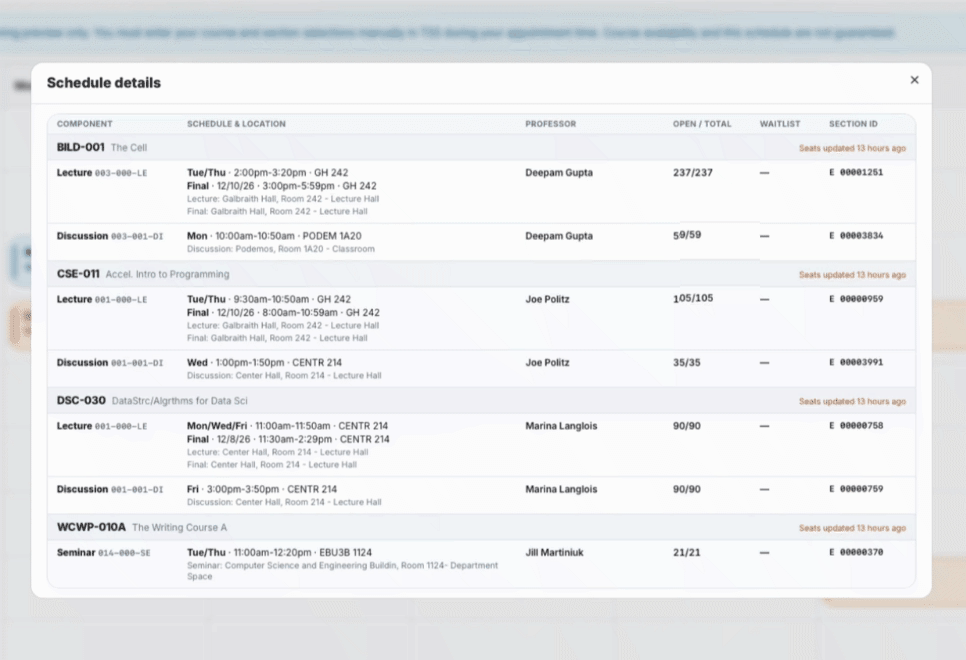
Open Details to review meeting and exam times, rooms, instructors, seats, waitlists, and section IDs.

If a meeting time is missing, listed as TBA, or out of date, check the course in TSS before you book.

Schedule Details view with meeting, instructor, seat, waitlist, section ID, and update information
Course and seat information can change. Check TSS before booking.

5 Continue to TSS

Review your schedule and finish in TSS

Open Review and check any reported items. When every course has a valid section combination, choose Continue to TSS.

  1. Sign in to TSS.
  2. Open a course from your saved schedule.
  3. Check the course and the sections you planned.
  4. Choose Go to Booking, then Book.
  5. Return to Class Planner and open the next course.

Opening a course in TSS does not mean the course was booked.

Video: open a course from Class Planner, check the planned sections in TSS, and finish booking there.

Save, return, and add the schedule to your calendar

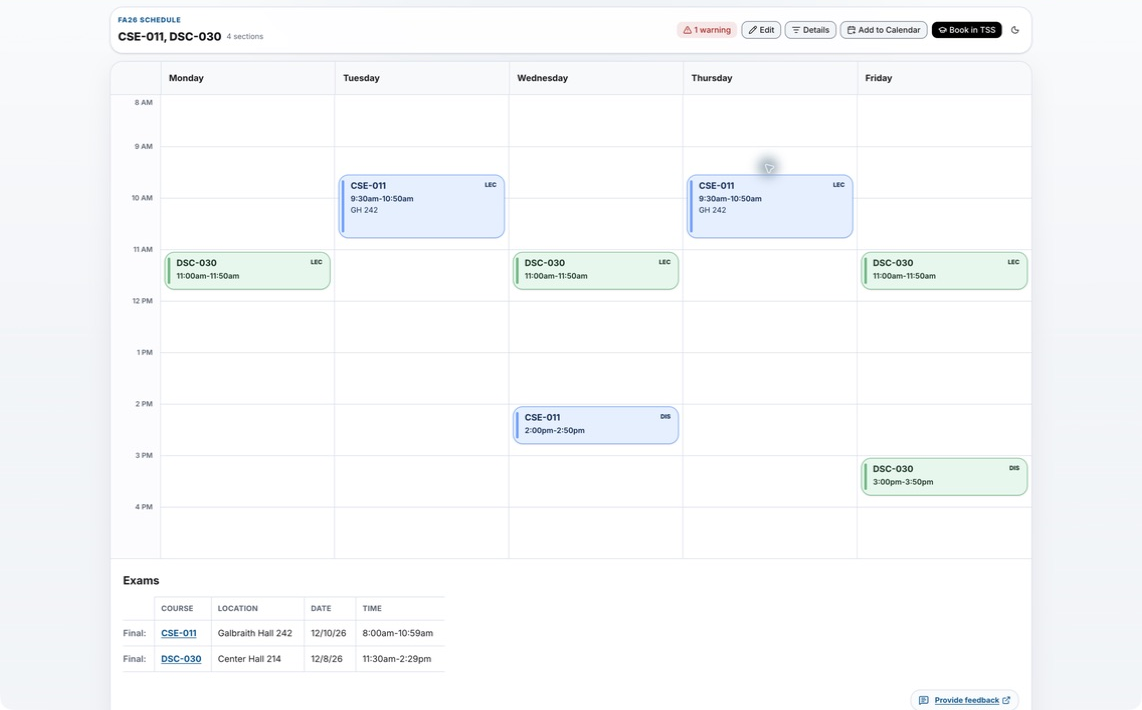
Copy the return link to come back later. Anyone with the link can view the saved schedule.

Choose Add to Calendar to download a calendar file or open a calendar app. This copies the schedule once. It does not update when course information changes.

Saved schedule with editing, details, calendar, and TSS controls
A saved schedule keeps the calendar, return link, and TSS links together.

Class Planner updates

Release notes

Changes to the Class Planner application.

What is different in this version

  • The mode names are shorter and consistent: Auto planning replaces the previous “Build for me” label, and Manual planning replaces “Plan manually.”
  • Course search, filters, selected courses, preferences, and schedule review now live together in one detailed workspace.
  • Auto planning creates compatible schedules to compare; Manual planning lets you select exact lectures, discussions, and labs.
  • Calendar, Details, and Map views now make it easier to review times, seats, locations, and walking time before choosing a schedule.
  • The TSS handoff includes a booking checklist and direct course links; booking still happens in TSS.

Campus map and expanded section details

  • Review meeting times, rooms, related sections, and open seats.
  • Switch between Calendar, Details, and Map when comparing a schedule.
  • Check walking estimates and the time between classes.

Direct course links to TSS

  • Save a schedule and open matching course pages in TSS.
  • Check the planned sections in TSS before booking.
  • An opened link does not mean the course was booked.

Initial launch

Build and compare class schedules

  • Search for courses and build schedule options from available sections.
  • Set goals, time limits, preferred class times, and commitments.
  • Compare schedules, check details, save a schedule, and return later.

Frequently asked questions

Know before you plan

Does Class Planner enroll me in classes?

No. Class Planner helps you plan and can open courses in TSS. You must complete booking in TSS.

What is the difference between Auto and Manual planning?

Auto planning creates compatible schedules from your courses and preferences. Manual planning lets you choose every required section yourself.

Why can’t I continue to TSS?

Every course needs a valid set of required sections. Add any missing lecture, discussion, or lab, then check Review again.

Are seats or waitlist positions guaranteed?

No. Counts can change. Class Planner does not reserve a seat or waitlist position.

What should I do with a Review item?

Open Review and check each reported item for the schedule on screen. Make changes or verify the course in TSS if needed.

What if a course has TBA or missing meeting information?

Class Planner cannot fully check a missing meeting time. Look up the course in TSS and leave room for the missing meeting.

Can I return to or share a saved schedule?

Yes. Copy the return link after saving. Anyone with the link can view the saved schedule.

Can I add the schedule to my calendar?

Yes. Choose Add to Calendar. The copy does not update when course information changes.

How many courses can I add?

You can add between 1 and 12 courses.

Ready to start planning?

Have your course choices and personal commitments ready.

Open Class Planner